Phishing email example · Tactic: Authority
Office 365 phishing email example: fake suspicious login alert
This Office 365 phishing email warns of a suspicious login attempt and tells you to confirm your identity by signing in to “the portal.” The tell is the sender, 365security@notificationcenter.co, which is not a Microsoft domain. It also contradicts itself: the top line says your billing statement is ready.
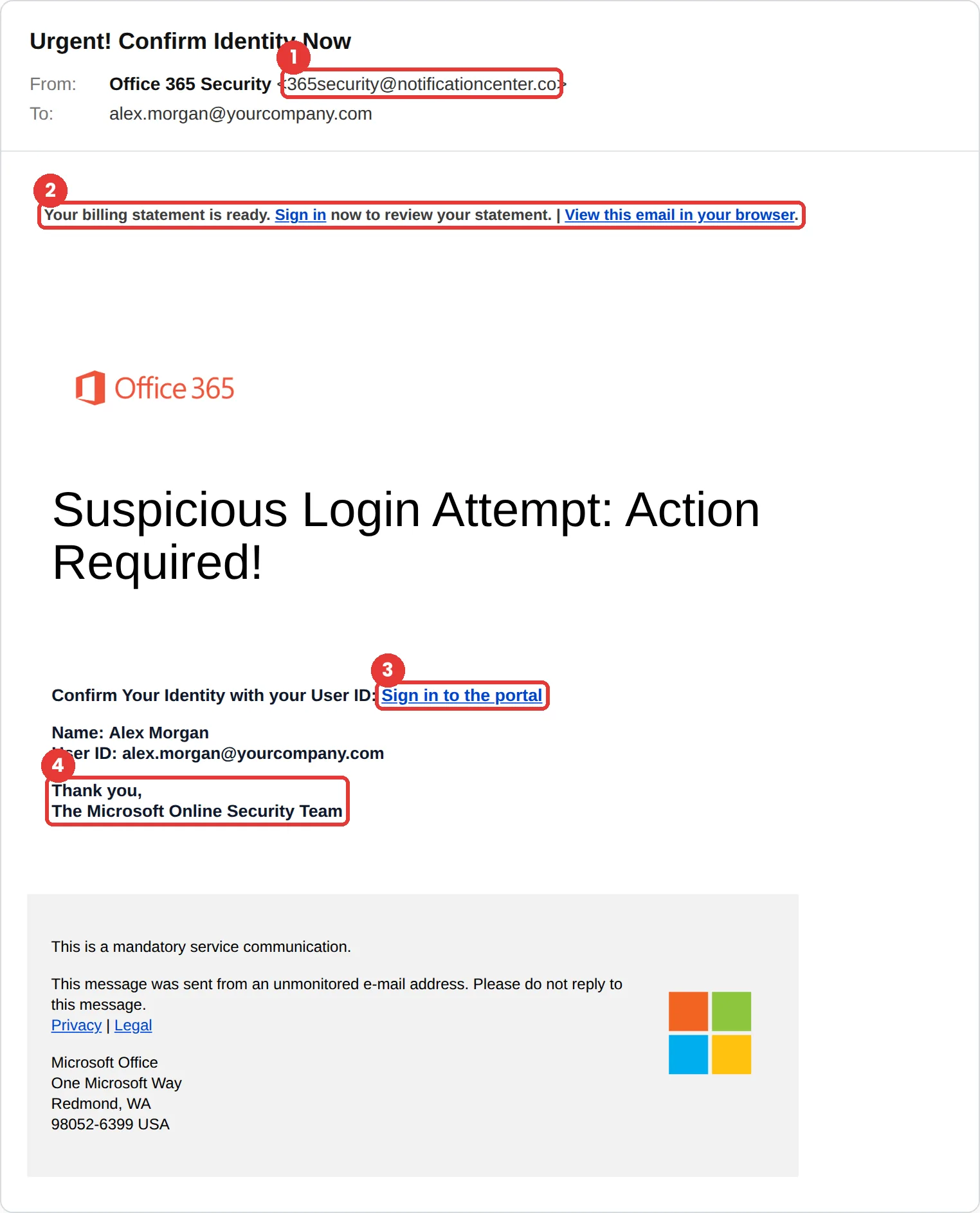
The red flags
- Subject
- Urgent! Confirm Identity Now
- From
- 365security@notificationcenter.co
- 1
A generic, non-Microsoft domain
notificationcenter.co is not Microsoft.
- 2
Two different stories
The subject is about a suspicious login. The first line is about a billing statement. That is a copied template nobody cleaned up.
- 3
Sign in to “the portal”
An unnamed portal link is not how you check a sign-in. Open Microsoft 365 yourself, or ask IT.
- 4
Authority it signs for itself
“The Microsoft Online Security Team” and “mandatory service communication” add weight, not information.
Why this Office 365 scam works
It presents itself as a mandatory service communication from “The Microsoft Online Security Team,” the kind of message employees feel they aren’t allowed to ignore. It even prints your name and work email, which makes it feel addressed to you by a system that knows you.
Suspicious-login warnings are real and common, and for a work account the stakes feel high. Being told to confirm your identity sounds like the security-conscious thing to do.
The tactic: Authority. It appears to come from someone senior, and questioning them feels costly. See all six tactics.
Who gets this email
Employees at organisations that use Microsoft 365 for email, which is a very large share of businesses. It is written for work inboxes: it quotes a work address, and the sign-in it asks for is the one that unlocks email, Teams and SharePoint.
Other versions of this scam
- A “your password expires today” notice with a Keep current password button.
- A voicemail or Teams message notification that asks you to sign in to listen.
- A quarantine notice saying messages are being held and need releasing.
Check it in 30 seconds
- Read the sender domain.
- Notice when the subject and the body tell different stories.
- Open Microsoft 365 yourself to check your account, or ask your IT team.
- Use the Report phishing button so IT can pull it from everyone else’s inbox.
What happens if someone clicks
The portal link usually opens a pixel-perfect copy of the Microsoft 365 sign-in page. Modern phishing kits pass your password and MFA code to the real site in real time and keep the session, so the attacker is signed in as you. From there they read email, set up forwarding rules and send invoices or payment requests to your contacts from your real account.
How to report a Office 365 phishing email
- At work, use your email’s Report Phishing button, or forward the message to your IT or security team, before anything else. They can pull the same email from everyone else’s inbox.
- In Outlook, select the message and choose Report, then Report phishing. From other email apps, attach the message to a new email to phish@office365.microsoft.com. Microsoft: protect yourself from phishing
- Forward the email to the Anti-Phishing Working Group at reportphishing@apwg.org. APWG reporting
Already clicked? Close the page, change the password for any account you entered, sign out of active sessions, and report it anyway. Speed matters far more than blame.
Questions about Office 365 phishing emails
Not through the email. Open Microsoft 365 yourself, or ask your IT team, and check from there. An email that asks you to sign in through a link to “confirm your identity” should be treated as suspicious.
Microsoft renamed most Office 365 business plans to Microsoft 365 in 2020. Attackers still use both names, because both are familiar to anyone with a work inbox.
In Outlook, choose Report, then Report phishing. From another email app, attach the message to a new email to phish@office365.microsoft.com. At work, your IT team may also want it forwarded to them.
It is a phishing simulation template from Hook Security’s library, modelled on real attacks. Links and tracking have been removed from the screenshot.
Give your team a safe first encounter with emails like this.
Hook sends realistic simulations built from real attacks, then a short training moment right after any click. It runs on Autopilot.